windows 8

Make Windows 8 Much Easier and Quicker to Use

Windows 8 can be frustrating because nothing seems to be where it used to be. Here are three tricks that help you find things. They will make ordinary tasks much easier to carry out. One of the annoyances of Windows 8 is trying to find all the various system settings. Readmore...

Blocked Sites

How to -- Bypass/Access Blocked Websites At College/Office

The scenario has changed a lot over the past decade.Internet has grown into a vast resource and with search engines like google it hasn’t been so easy to search for anything about anything on the internet. Internet has become more addictive with the advent of social Readmore..

Windows 8

Windows 8 Direct Download Links

Microsoft has recently released Windows 8 RTM Enterprise for 32-Bit (x86) And 64-Bit (x64) Version. The evolution provides Readmore...

Top Blogger

World's Top 5 Bloggers

Blog Owner : Pete Cashmore
Estimated Unique Monthly Visitors : 42,000,000
Income : $ 10,00,000 Month
Readmore...

Hard Disk

Different types of Hard Disk Drive

Hard Disk Drive - It is a non-volatile storage device which stores digitally encoded data on rapidly rotating platters with magnetic surface.
Types of HDD :
IDE : Integrated Drive Electronics. IDE drives are also known as PATA drives Readmore...

Showing posts with label Windows 7. Show all posts
Thursday, 10 January 2013

How to Find Out What is Causing Problems on Your Windows 7 PC

Are you experiencing problems on your PC such as hangs or crashes? Here is one possible way to see what is causing the trouble. Take a look at the Reliability Monitor that comes with Windows 7. For example, if you have had a Blue Screen of Death (BSOD) crash, you may not have gotten a chance to record the error messages. But you can retrieve the data from a BSOD in the Reliability Monitor history. It also can help you find out if a particular application has issues. It displays a timeline for various system events and divides them into failures, warnings and information.

To open Reliability Monitor
  1. Type “reliability” or just “rel” in the Start search bar
  2. Click “View reliability history”
  3. A report will open
 An alternate way to open Reliability Monitor is the following:
  1. Open the Action Center
  2. Click “Maintenance” to expand the menu
  3. Under “Check for solutions to problems reports”, click “View reliability history”
  4. A report covering a selected period of time like the one in the figure below will open
 Click a date for more information about a reported event. In the figure below, the date 1/1/2013 (shown by the colored bar) has been selected. Two events on that date were logged and are listed in the bottom panel.


 Reliability Monitor also comes with windows Vista.
Continue reading →
Sunday, 6 January 2013

Three Tricks for Shutting Down Your Windows 7 PC without Having to Install Updates

Have you ever been in a hurry to shut down your PC only to find that Windows says it is installing updates and you have to wait? Wait no more. Here are three different tips for shutting down without having to install updates.

First, note that if updates are waiting to be installed, the “Shut down” button has a little orange shield warning on the left as shown in the graphic below. The tips below are to be applied before Windows starts installing.


How to shut down without updates method 1
  1. Open the command prompt.
  2. Enter shutdown /s /f /t 0 (The last character in the command is "zero".
How to shut down without updates method 2
  1. Make sure that your desktop has the focus. Either click on a blank spot on the desktop or use the keyboard combination: Windows key+D
  2. Enter the keyboard combination: Alt+F4
  3. A dialog box will open. In the pull-down menu, select “Shut down”. The figure below shows an example of the dialog. (A very similar dialog will appear in the Windows 7 Home version.) Of course, if there are no updates waiting to be installed, the option “Install updates and shut down” will be missing.

How to shut down without updates method 3
  1. Lock the computer with the keyboard combination: Windows key+L
  2. If you have several user accounts, click the button “Switch User” on the new screen that opens. Otherwise go to the next step
  3. The screen that opens has a red shutdown button in the lower right corner with a drop-down menu containing the option “Shutdown without installing updates”.
After using one of these procedures, the updates are still there waiting until the next time you want to shut down. 
Continue reading →

This Utility Will Tell You All About the Graphics Card on Your PC

The way we use computers these days requires a lot more graphics capability than it used to. But there’s a quick and easy way to check what kind of graphics memory is on a PC. Use the free lightweight utility from Techpowerup called GPU-Z to reveal all the vital statistics for your GPU. The figure below shows the kind of detail that is given. (Note that because of the kind of system information it accesses you will be asked to grant permission for it to run.)


There is also a tab with statistics from sensors such as the GPU temperature. An example is shown in the next figure.

The utility is a single stand-alone file that needs no installing. It runs on all current Windows systems including Windows 8.
Continue reading →
Sunday, 9 December 2012

How to make your computer speak when you log on


Make your computer speak on startup and amaze your friends,its a very simple trick.....just go through the below article....

1.open Notepad.

2.Paste the bellow code in Notepad.

Dim speaks, speech
speaks="Welcome Back, Username"
Set speech=CreateObject("sapi.spvoice")
speech.Speak speaks

3.Replace Username with your Name.

4.Click Save As and save as type Welcome.vbs.

5.Copy File Welcome.vbs and paste it at address below.

For Windows 7 :

C:\Users\Username\AppData\Roaming\Microsoft\Windows\Start Menu\Programs\Startup

For Windows-Xp :

C:\Documents and Settings\All Users\Start Menu\Programs\Startup


*Replace Username with your username and C:\ with your Root Drive

Done Log Off and Log In Amazed? .Now Your computer welcomes you with your name.....


Continue reading →

How to use a keyboard as mouse

Just go through the steps:-

1.Press  Shift+Alt+Numlock from ur Keyboard


2.Press Yes on the window appearing on the screen


Now you will see a Mouse icon in Task Bar


4.Now you can use your keyboard as mouse

5.Navigation Keys (Num Lock Keys)
 
8 – Up
2 – Down
4 – Left
6 – Right
7,9,3,1 – Directional Navigation

Note:- You Must Turn On Num Lock
 
Continue reading →
Friday, 24 August 2012

How to Create a Windows 7 Live CD the Easy Way

Windows 7 Live CDBefore we get into creating a Live CD, lets understand what exactly it is and how it can save you a lot of trouble in case of a computer crash or malware infection on your PC. A Live CD is basically a bootable storage device that contains an operating system (OS). What is different about a live CD is the fact that the working of the OS does not depend on the hard drive. Why do you need a Live CD? If your Windows operating system crashes completely, you will have limited access to important files.
By using a Live CD, you can easily access these files and transfer them to another storage device. You can also use a Live CD to clean severe malware infections. In some cases, the malware blocks all executable programs—which prevents your antivirus software from running. By using a LiveCD, the malware’s defense will be completely obsolete!
There are numerous types of Live CD software like Linux that allow you to recover and fix your computer. However since many of these Live CDs are based on different platforms, they are not fully compatible with Windows. Therefore, you will have problems scanning your Windows drive from a different operating system (like Linux) on a Live CD. Creating a Windows Live CD allows you to fix many errors on your Windows drive with much more convenience.
In this guide, you are going to learn how to create a Windows 7 Live CD – the easy way. There are other tutorials about this on the Web, but they mostly involve using WinBuilder—which doesn’t always work successfully. In this guide, you are going to learn how to create a live CD using Make_PE3 which is a better alternative as well as with WinBuilder. After reading about each software you can choose which one to use for creating a Live CD.

Things you’ll need:

  • Windows 7 ISO File
  • Make_PE3 or WinBuilder
  • Windows Automated Installation Kit (If You are Using WinBuilder)

Downloading the Windows 7 ISO File:

You need the installation files to create a Live CD. These installation files can be  found on your Windows 7 setup disc. If you don’t have one, you can download from here.

Continue reading →

Windows 7 With Service Pack 1 Direct Download Links

Download Windows 7 Integrated SP1 ISO Images

Windows 7 Home Premium x86 SP1 ISO

X17-24208.iso (bootable)

Windows 7 Home Premium x64 SP1 ISO

X17-24209.iso (bootable)

Windows 7 Professional x86 SP1 ISO

X17-24280.iso (bootable)

Windows 7 Professional x64 SP1 ISO

X17-24281.iso (bootable)

Windows 7 Ultimate x86 SP1 ISO

X17-24394.iso (bootable)

Windows 7 Ultimate x64 SP1 ISO

X17-24395.iso (bootable)
After you have downloaded the ISO, you can burn it to DVD using any DVD writing software that supports writing disc images or double-click on the image if you are running Windows 7 already.
Continue reading →
Wednesday, 1 August 2012

Hide desktop icons to improve Windows startup performance


Long, long time ago in a bedroom not so far away I was booting up my laptop. As my laptop was loading Windows, I couldn't help but notice the desktop icons took a good amount of time to appear. Then a thought hit me: What if I hide the desktop icons -- would that make my boot time faster? After all, with the excellent search box embedded in the Windows 7 Start Menu that will be no more soon, I rarely even used my desktop icons anyway; what could go wrong. So I gave it a try. And, to my pleasant surprise, p-value was < .05 -- the null hypothesis was rejected: My Windows indeed did load faster with no desktop icons present.

How To Turn Off Desktop Icons?

Note: This tip should work on Windows XP, Vista, and Win7. It may work on Win8.
Easy. Right-click on your desktop, go to View, and uncheck Show desktop icons:


 Once Show desktop icons is checked, the icons on your desktop won't show. They aren't deleted -- they just won't show. To reshow the icons, simply recheck Show desktop icons.

I'm not sure what the technical reason behind this is (aside from the whole "there are fewer things to load" explanation) and frankly I don't know. Since that time long ago, I have rarely ever had the icons my desktop showing and am a better person for it.. If you have trouble with slow Windows boot, you may want to do the same.
Continue reading →

Computer crashes have you down? Test your RAM for problems with Memtest86+.

MemTest86+ is a diagnostic program used to detect hardware problems with RAM (memory) modules. Since it can be run from a bootable CD, it is faster, safer, and more accurate at detecting memory problems than similar tools which would be run from within Windows.

To use MemTest86+, you first create a bootable CD/DVD with the program on it. You then boot your computer from this CD/DVD and MemTest86+ will start testing your RAM automatically. If there is a problem with your computer’s memory, MemTest86+ will list the errors on screen. Here is how to go about using MemTest86+:
  1. Click here to download the ISO image from the MemTest86+ website. Be sure to select the file named “Pre-Compiled Bootable ISO (.zip)”.
  2. Save this file to your desktop.
  3. Once the download completes, open the downloaded archive file and extract (drag and drop) the single file contained inside to your desktop. The extracted file should have a “.iso” extension.
  4. Use your favorite CD burning software to burn the ISO image to a CD. Be aware, the ISO file you downloaded is an image of a complete CD. You do not want to just burn the ISO image file to a CD as you would other data files, but instead want to make a CD from the image file. How you do this will vary depending on the program you use, but most will have an option similar to “Burn CD from Image File”.
  5. Once you have a MemTest86+ CD, leave it in your computer’s drive.
  6. Restart your computer.
  7. As soon as your computer begins to restart, you will see the BIOS screen (white text on a black background). You should see an option to access a boot menu (often times you are instructed to press “F12″, “F10″ or “Esc” to access the boot menu).
  8. Press the appropriate key to access the boot menu, then select the CD drive with the MemTest86+ CD in it as the boot drive.
  9. Your screen will turn blue and the MemTest86+ program will start its tests. You can watch the progress in the top right.
  10. Depending on the amount of RAM you have, the tests could take a long time. You can either stay and watch the tests run, or leave your computer and return to it later.
  11. Any errors that are found will be listed in red at the bottom of the MemTest86+ screen. If the test complete without errors, you can eject the CD and restart your computer as normal.

What do the errors mean?
If the MemTest86+ scan reported errors, it means that is a problem with your RAM modules or your computer’s motherboard. You should consult a qualified IT company to further troubleshoot the problem and replace any defective hardware.
Continue reading →
Sunday, 22 July 2012

Enable the (Hidden) Administrator Account on Windows 7 or Vista

Many people familiar with prior versions of Windows are curious what happened to the built-in Administrator account that was always created by default. Does this account still exist, and how can you access it?

The account is created in Windows 7 or Vista, but since it’s not enabled you can’t use it. If you are troubleshooting something that needs to run as administrator, you can enable it with a simple command.

Note: You really shouldn’t use this account for anything other than troubleshooting. In fact, you probably shouldn’t use it at all.

Enable Built-in Administrator Account

First you’ll need to open a command prompt in administrator mode by right-clicking and choosing “Run as administrator” (or use the Ctrl+Shift+Enter shortcut from the search box)


Now type the following command:
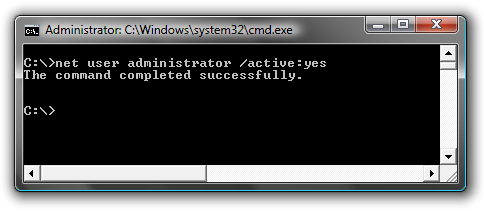
net user administrator /active:yes
You should see a message that the command completed successfully. Log out, and you’ll now see the Administrator account as a choice.

You’ll note that there’s no password for this account, so if you want to leave it enabled you should change the password.

Disable Built-in Administrator Account

Make sure you are logged on as your regular user account, and then open an administrator mode command prompt as above. Type the following command:
net user administrator /active:no
The administrator account will now be disabled, and shouldn’t show up on the login screen anymore.

Continue reading →
Thursday, 21 June 2012

Windows 7 - Shut Down -Speed Up

Issue

It takes too long to shut down computer running under Windows 7.

Solution


OPTION ONE

Using a REG File Download
1. To Speed Up Shut Down Time A) Click on the Download button below to download the file below.
NOTE: This sets the shutdown "Wait to kill" time to 2 seconds (2000 milliseconds). If you want shutdown to wait for a different amount of seconds, then do the manual method below. 

2_Second_Shutdown.zip

DOWNLOAD


B) Go to step 3.

2. To Restore the Default Shut Down Time A) Click on the Download button below to download the file below.
NOTE: The default shutdown "wait to kill" time is 12 seconds (12000 milliseconds). 

Default_Shutdown.zip

DOWNLOAD

3. Click on Save, and save the .zip file to the desktop.

4. Open the .zip file and extract the .reg file to the desktop.

5. Right click the .reg file (On Desktop) and click on Merge.

6. Click on Run, Yes, Yes, and OK when prompted.

7. When done, you can delete the downloaded .reg and .zip files on the desktop if you like.


OPTION TWO

Manually in Registry Editor
1. Open the Start Menu.

2. In the search box, type regedit and press Enter. (See screenshot below)


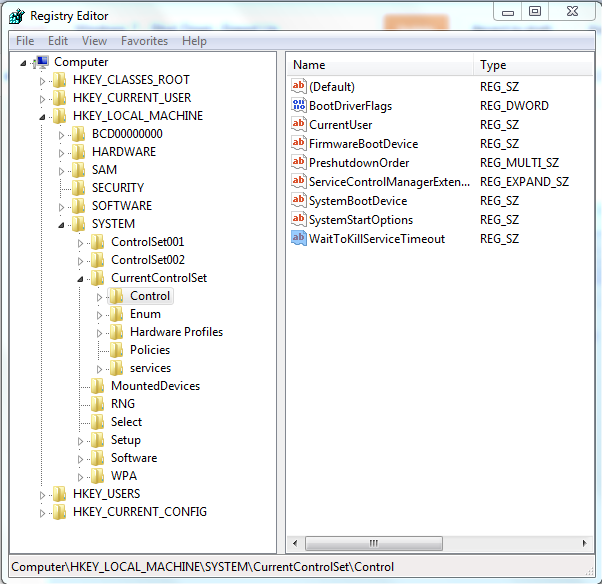
3.  In regedit, go to: (See screenshot below)
 HKEY_LOCAL_MACHINE\SYSTEM\CurrentControlSet\Control

 
4. In the right pane, right click on WaitToKillServiceTimeout and click on Modify. (See screenshot above)

5. Type in a number between 2000-20000 (2-20 seconds) and click on OK. (See screenshot below)
NOTE: The default time is 12000. I use 2000 (2 seconds) and have not had any problems. Your experience may vary.

 6. Close regedit.
NOTE: If you have problems with programs from your computer shutting down to quickly, then repeat the above steps and increase the time (step 5) a bit.

That's it,
One Stop Solution
Continue reading →
Saturday, 31 March 2012

Angry Birds Space - Free Download


The Famous game Angry Bird Space game is a premium game,but it is quiet hard for those who are not earning money or who don't want to waste their money on buying the Game.But dont worry if you want to play this game but not wanted to use your money on buying this game,then follow the below article....

Angry Bird Space game is totally different from other version of this game.You are taken to the space,where you get the real space experience.Many new birds has been added in this game.


How to Activate Angry Bird Space Full version for Free


  • First go and download Angry Bird Space for Windows from here.
  • Now extract the .rar file.
  • Run the setup and install the game in your PC
  • Don't run the game!
  • Now open the extracted folder and go into the Patch folder.
  • Run the Patch.exe file
  • Now click on the Patch and browse to the place where you had installed your game,by default it is in the program files and choose the Angry bird space.exe file
  • You will see message Patched successfully.
  • Now Go to the extracted folder and open the Serial key.
  • Copy the Serial Code.
  • Now Run the Game and click on Register full version
  • Paste the Serial code and you are done.
  • Enjoy the game.


Share your few seconds and like our website to stay updated with new contents.

Continue reading →
Saturday, 17 March 2012

How to activate Windows 7 ( All Editions )

Activations of windows 7 is not something that only a geek can do. You can activate windows 7 in just a few clicks using the following provided software.

Windows 7 Loader v1.9


This is the loader application thats used by millions of people worldwide, well known for passing Microsoft's WAT (Windows Activation Technologies) and is arguably the safest Windows activation exploit ever created. The application itself injects a SLIC (Software Licensing Description Table) into your system before Windows boots, this is what fools Windows into thinking it's genuine.

Features

* Can be run as a standalone application
* Works well with all system languages
* Argument support for silent installs
* Can be used for pre-activation
* Application integrity checking
* Custom error handling
* Support for hidden partitions and complex setups
* Can work alongside Linux's GRUB or any other boot manager
* Works with TrueCrypt and many other types of hard drive encryption applications
* Add your own certificates and serials externally
* Offers certificate and serial installation only for users with an existing SLIC 2.1
* Automated system profiling (The application matches everything up for you)


The rundown

* This will run on x86 and x64 systems
* This can activate all Windows versions at the same time, just install it on each
* No core system files get modified
* No extra processes are run so you have nothing eating at your RAM
* All key parts of the exploit are encrypted with a custom encryption
* The exploit runs before Windows so it's harder for Microsoft to prevent
* The exploit patches all necessary tables making activation look authentic
* The application will select the best profile for your system during installation
* Each and every user has a unique version of the exploit installed on his/her system.

Supported operating systems
* Windows 7 Ultimate
* Windows 7 Professional
* Windows 7 Home Premium
* Windows 7 Home Basic
* Windows 7 Starter
* Windows Vista Ultimate
* Windows Vista Business
* Windows Vista Business N
* Windows Vista Home Premium
* Windows Vista Home Basic
* Windows Vista Starter
* Windows Server 2008 R2: Enterprise
* Windows Server 2008 R2: Standard
* Windows Server 2008 R2: Foundation
* Windows Server 2008: Enterprise
* Windows Server 2008: Standard
* Windows Server 2008: Foundation
* Windows Small Business Server 2008

Note: You must be running build 7600 or greater for Windows 7 and Windows Server 2008 R2.
Note: Windows 7 N and E editions will only be supported when OEM SLP serials leak for them editions.

Version 1.9.2 (change log since last version)
* Added a new GRLDR version
* Added an option to disable ACPI table sort (Use this if your system hangs under the default settings)
* Added an option to disable the usage of type 4 memory (Try this if you lose genuine status after hibernation or sleep)
* Tweaked the UI which now also displays the systems current serial
* Fixed a bug which prevented the application from installing the loader over really old GRLDR versions
* Other minor tweaks and fixes

1. Install windows 7 (DON'T Enter a Serial During Installation).
2. Extract the win7 loader using winrar or winzip. Run this as Administrator.
3. Click on Profile. (Optional)
4. Choose Matching SLIC and Certificate (Dell, MSI, etc) (Optional)
5. Choose Serial (Serial Must match Your version of Win 7) (Optional)
6. Click on the install button. (under Activation options)
7. Wait for Loader to Work and Reboot.
8. Done....Enjoy!!

Note: To check and make sure your Windows 7 is activated go to: Start > Right Click COmputer > Properties > Look under the Windows Activation Section at the bottom and it should say "Windows is Activated"

Continue reading →
Sunday, 26 February 2012

Create a Flip3D Taskbar Icon in Windows 7

Flip3D was a fun and cool looking feature in Windows Vista that can be very useful for switching between windows. With the improved Windows 7 taskbar, Flip3D was replaced with improved thumbnails and Aero Peek.

This Windows trick works with Windows 7 or Windows Vista but not in XP. If your computer can run Aero (the default interface with see-through windows), you can use Flip 3D, a sort of 3D version of the [Alt] + [Tab] shortcut. With this shortcut, Windows shrinks all program windows so they all fit on the screen. You flip through them in a stack of 3D screens to find the window you want.


This article will show you how to create a Flip3D icon on the Windows 7 taskbar:


1.Right click on the Desktop and select New and then Shortcut.

2.Type in RunDll32 DwmApi #105 in the location box and click Next.

3.Type in Flip3D as the Name and click Finish.

4.You will now have an shortcut on the desktop that will launch Flip3D but it has the wrong icon. Right click on the Flip3D shortcut and select Properties.

5.On the Shortcut tab click the Change Icon button.

6.Change the Look for icons in this file text box to C:\windows\explorer.exe and it Enter.  The Flip3D icon will now be available. Select it and click OK.


7.Click OK to close out the shortcut properties window.

8.Finally, just drag and drop the new shortcut on the Windows 7 taskbar to pin it.

Continue reading →
Tuesday, 21 February 2012

The Cleverest Geeky Windows Tricks Everyone Should Know


Use the Secret Send To Menu Items

When you right-click on any file or folder, you can use the Send To menu to create a zipped version, or send the file to an application, but in Windows 7 there are hidden items on the Send To menu that can't be seen by default.

All you have to do is hold down the Shift key, then right-click on a file and access the Send To folder—you'll see a whole bunch of new items in the list, like special folders, and even an item for each one of your drives. It's a really useful tip for quickly sending a file to the flash drive you just plugged into the PC, without having to do anything else.

Open a Command Prompt from Any Folder

This is one of those tips that most real geeks already know, but chances are there's somebody reading this that doesn't know about it—if you hold down the Shift key while right-clicking on any folder, including the desktop background, you'll see a new item for "Open command window here", that will open a command prompt with that folder as the default path. This tip only works in Windows 7 or Vista.

Hide Secret Data Inside Any File

There's any number of great ways to hide data from prying eyes—TrueCrypt, anyone? But if you want to simply hide some text data inside a secret "compartment", you can abuse the Alternate Data Streams feature in the underlying NTFS file system. All you have to do is open up a command prompt, and then use a command similar to this:

notepad SomeFile.txt:SecretWordHere.txt

The special filename with the colon and second filename tells NTFS to actually store the data in an alternate stream, instead of the regular file. You can put whatever you want into the file, and nobody will be able to access it unless they know the command to retrieve it.

Tile or Cascade Specific Windows

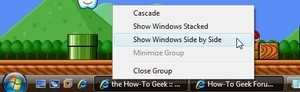
Sure, Windows 7 has the awesome Aero Snap feature that lets you drag windows to the side of the screen to fill one side, but what if you want to cascade them, or tile them stacked on top of each other?

Back in the XP and Vista days this was relatively simple—you could hold down the Ctrl key while selecting multiple windows on the taskbar, and then right-click on any of them to tile or cascade them. For Windows 7, you can do the same thing, but you'll need to open up Task Manager instead, hold Ctrl, select the open windows, and then you can cascade them from there.

Undo an Accidental File Move or Deletion With the Keyboard

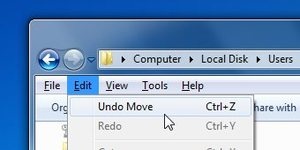
Have you ever tried to select a bunch of files while holding the Ctrl key, and then accidentally copied all of them because you slightly moved your mouse? Maybe you just deleted a file and don't feel like hunting it down in the Recycle bin. In either case, you can use the Ctrl+Z shortcut key to immediately reverse whatever you didn't mean to do.

Readers will probably point out that you can also do this from the context menu in Windows 7, but it's surprising how many people don't realize the keyboard shortcut works. 

Keep Connected to find out new unknown Windows Tricks.
Continue reading →

Top 5 must-have desktop Gadgets for Windows 7


1: Facebook Explorer

Facebook Explorer, can be configured to run in a smaller or larger width and one of three heights, and you can specify how often you want updates (from every one to 60 minutes). It gives you a compact view of your own status and information or friends’ activities, as shown in two views of the gadget in. You can also update your status in the flyout.


2: Clipboard Manager

Clipboard Manager  looks slick and is feature-rich. You can customize the background to fit your desktop, and not just the color; you can use a photo as the background if you prefer.
You can save up to 999 clips (that’s a lot of clips!) and you can delete any clip or send it to the Clipboard or to your Favorites list with a right click. The Favorites feature lets you create boilerplate text you use often. I also like the ability to mark clips with timestamps. And unlike the old Clipboard gadget, this one supports images as well as text. It even has a privacy mode, which prevents clips from being displayed on the main gadget so that passers-by who glance at your desktop can’t see what you’ve saved to the clipboard.


3: App Launcher

One aspect of Windows 7 that annoyed and frustrated many users was the omission of the Quick Launch toolbar. If you’re like me, for years you’ve relied on the Quick Launch bar to access your frequently used programs. There is a way to get Quick Launch back, but unlike with previous versions of Windows, you can’t separate the Quick Launch bar from the main Taskbar. That means it takes up precious space on the Taskbar that you might need for open programs, system tray items, etc.
Enter the App Launcher gadget . It serves the same purpose as the Quick Launch bar but can be placed anywhere you want on the desktop. You can add whatever programs you want by dragging them to the gadget, configure the number of icons to display per row and whether to center them, and change the background image.


4 : Shutdown Gadget

Don’t go to Start menu to shut down. You can Shutdown/Restart/Logoff in a single click by using this gadget.


5 : All CPU Meter

All CPU Meter isn’t as complex as some, but the simplicity works in its favor. It monitors your memory usage as well as CPUs, and it packs a lot of information into a small space. I also like that you can change the background color to match your preferences.


Continue reading →
Thursday, 16 February 2012

Use Ready Boost to Speed up your PC performance


Ready Boost is a great feature by Windows to Speed up your PC performance using compatible pen drives. However, it boosts your system speed as it works as a Virtual RAM for your Computer, thereby Improving PC performance. It's just like using your Pen drive/SD Card/Flash drive as RAM. It is a feature that every Windows user should take benefit of!!!

There are some requirements of your PEN/FLASH drives too-

  • It should have at least 1 GB storage capacity.
  • It should have 512 MB free data.
Steps to Enable Ready Boost:-
  • Plugin your pen drive into your USB port. A dialog box will pop-up asking you what you want to do with your pen drive.
  • To speed up your system using ready boost,Click on Speed up my System using Windows Ready Boost.

  • A new dialog box will appear showing you the Ready Boost Properties. You can even configure the Space of your pen drive you want to use to increase system speed.

  • Click on Apply and hit OK.
Now you will experience increase in your PC Speed.

Hope you find my article useful!!


Continue reading →

Trick to Copy Files with Super Fast Speed in windows 7, Vista and XP


We all know that our default tool for copying and moving files is too slow . Sometimes if you are moving large files, you just get annoyed by the time it will take. Even it happens that the computer hangs if you are moving multiple files at the same time. And this delay is more annoying when you are using Windows Vista or Windows 7. But there is a solution to get rid of this. There are some awesome third party tools which are much better then the default MS copying tools as they are capable of copying files with a super fast speed.

There are many third-party softwares that can do this job for you. But here we are providing the top copying Managers that are much faster,easy to use,and free of cost.
I have found a lot but I am going to provide you the best ones.


Super Copier 

Super Copier is the Best super fast speed copier I have ever seen. I am currently using this amazing utility. It is very small and a Light-weight Program. It will run in the system tray and does not eats up your much memory and CPU usage. You can even Pause,resume, schedule you copying processes. Super copier helps a lot in increasing your copying speed.
Whenever any error occurs during the copying process, it will show you the actual reason behind the error.
 

TeraCopy
 
TeraCopy is also one of the most used copy manager.  The best part of this utility is that it can resume file transfer even if any error occurs during the copying process. When you install it, it will automatically integrate into your Right click context menu.

These are the top fast copiers.

Some other copiers are as follows:

Copy Handler

Talent Copy

Extreme Copy  

Please do comments on this post!!
Keep Visiting!!!!


Continue reading →
Wednesday, 8 February 2012

How to break Windows Password


Password security is very important for personal information stored on your Windows computer. To choose a strong password is not so hard, but to make it always a strong password is not that easy. Sometimes it's leaked accidentally when you type it to login to the computer. Therefore, to change the password periodically is the only way to make your password strongest.

No matter you know the originally password or forget it, there is a way for you to change administrator password on Windows.

Part 1. Change Windows password when knowing the original password

 If you know the original password, it's very easy for you to change it just as how you created it before.
Step1. Click on "Start" and choose "Control Panel".
Step2. Click on the "User Accounts and Family Safety" on the top right  side.
Step3. Under the "User Accounts" heading, click on the link of "Change your Windows password".
Step4. Here you are taken to the User Account window. Click on the "Change your password" if you already have one.
Note: If you don't have a password, you also can create one for your Windows here by clicking on the "Create a password for your account".

Part2. Change Windows password without knowing the original password

If you forget the password and can't login to the system, you need to take this way to change your password for Windows.

First, you need to download and install Wondershare LiveBoot bootable CD/USB on your computer, which can assist you to boot your compupter and change the administrator password for your Windows. This program works well on Windows 7, XP and Vista. Download registration info to register and use  Wondershare Liveboot 2012

Download links :
Part 1
Part 2
Registration Info

Step1. Create a bootable CD/DVD or USB drive with the LiveBoot

Install and run the program on your computer, and you'll get the interface as follow. Prepare a blank CD/DVD or USB drive and insert it into the computer, then follow the instructions on the interface, you can create a bootable CD/DVD or USB drive with one click.
If you don't have a burner installed on your computer, you can choose to burn with a USB drive, which doesn't require an extra burner. You can create a bootable USB drive with the LiveBoot directly.


 Step2. Boot your Windows computer

With the well created CD/DVD or USB drive, you can boot your Windows computer and access it successfully. Start the computer and press F12 immediately when the system begins loading, and you'll at a Boot Device Menu. Select the USB CD-ROM Drive and hit on Enter. Then you get the boot menu as follow. Choose "Boot from LiveBoot" and you can enter the locked system.

Step3. Reset and change Windows password

After entering the system, click the "Password & Key Finder" on the LiveBoot program. Then reset the forgotten password as blank by clicking on the "Admin Password Resetter".

 Then, take out the bootable disk or USB drive and restart your computer. You can directly access your computer without being asked for a password, and then back to the Part 1 to create a new password for your computer.
Continue reading →
Saturday, 4 February 2012

How To Uninstall Programs in Windows with an Easy Right-click

If you need to uninstall a certain program it can be annoying having to go through Control Panel >> Programs and Features, finding the app and uninstalling it. Today we take a look at a handy utility that allows you to uninstall programs with a simple right-click of a program’s icon.


1. Download and install MenuUninstaller. Unzip the file and run the MenuUninstaller.msi file as Administrator.
 2. Installation is a easy. Just follow the wizard and follow the install wizard.

 3. When the installation is complete close out of it.

 4. Now find a program you want to uninstall. All you need to do is right-click on the program’s shortcut and select a the new Uninstall option on the Context Menu.

 5. Now click Yes to the dialog that comes up asking if you’re sure you want to uninstall it.
 6. MenuUninstaller finds the program, click GO to start the process.

7. The uninstall process kicks startss. In this case it’s Adobe Reader and we need to go through it’s uninstall wizard.

 8. All done. That’s all there is to it!


Being able to uninstall programs by simply right-clicking the shortcut icon is much faster and more efficient. It saves you time so you can get on with other things and be more productive.
Continue reading →