windows 8

Make Windows 8 Much Easier and Quicker to Use

Windows 8 can be frustrating because nothing seems to be where it used to be. Here are three tricks that help you find things. They will make ordinary tasks much easier to carry out. One of the annoyances of Windows 8 is trying to find all the various system settings. Readmore...

Blocked Sites

How to -- Bypass/Access Blocked Websites At College/Office

The scenario has changed a lot over the past decade.Internet has grown into a vast resource and with search engines like google it hasn’t been so easy to search for anything about anything on the internet. Internet has become more addictive with the advent of social Readmore..

Windows 8

Windows 8 Direct Download Links

Microsoft has recently released Windows 8 RTM Enterprise for 32-Bit (x86) And 64-Bit (x64) Version. The evolution provides Readmore...

Top Blogger

World's Top 5 Bloggers

Blog Owner : Pete Cashmore
Estimated Unique Monthly Visitors : 42,000,000
Income : $ 10,00,000 Month
Readmore...

Hard Disk

Different types of Hard Disk Drive

Hard Disk Drive - It is a non-volatile storage device which stores digitally encoded data on rapidly rotating platters with magnetic surface.
Types of HDD :
IDE : Integrated Drive Electronics. IDE drives are also known as PATA drives Readmore...

Sunday, 13 January 2013

How to create facebook Chat codes

Have you seen People sending Smiles and images that are not part of Facebook Traditional chat codes.
Here in this post You will see how easy it is to create these codes and Impress you Facebook friends
Like, The best part is you can create your Unique codes . You can create codes of any image stored in you computer, by following these steps

1. Go to Smileyti

2. Click on "Browse" and select The  picture you want to use in Facebook chat.

3. Enter captcha code.[If you get one]

4. Click on "Upload Now" .


 5. It will generate code in few seconds in This form<< [[512585645451273]] [[512585638784607]] >>
Copy The code
   
6. Paste it in Facebook chat and hit enter.

Continue reading →
Thursday, 10 January 2013

How to Find Out What is Causing Problems on Your Windows 7 PC

Are you experiencing problems on your PC such as hangs or crashes? Here is one possible way to see what is causing the trouble. Take a look at the Reliability Monitor that comes with Windows 7. For example, if you have had a Blue Screen of Death (BSOD) crash, you may not have gotten a chance to record the error messages. But you can retrieve the data from a BSOD in the Reliability Monitor history. It also can help you find out if a particular application has issues. It displays a timeline for various system events and divides them into failures, warnings and information.

To open Reliability Monitor
  1. Type “reliability” or just “rel” in the Start search bar
  2. Click “View reliability history”
  3. A report will open
 An alternate way to open Reliability Monitor is the following:
  1. Open the Action Center
  2. Click “Maintenance” to expand the menu
  3. Under “Check for solutions to problems reports”, click “View reliability history”
  4. A report covering a selected period of time like the one in the figure below will open
 Click a date for more information about a reported event. In the figure below, the date 1/1/2013 (shown by the colored bar) has been selected. Two events on that date were logged and are listed in the bottom panel.


 Reliability Monitor also comes with windows Vista.
Continue reading →
Sunday, 6 January 2013

Three Tricks for Shutting Down Your Windows 7 PC without Having to Install Updates

Have you ever been in a hurry to shut down your PC only to find that Windows says it is installing updates and you have to wait? Wait no more. Here are three different tips for shutting down without having to install updates.

First, note that if updates are waiting to be installed, the “Shut down” button has a little orange shield warning on the left as shown in the graphic below. The tips below are to be applied before Windows starts installing.


How to shut down without updates method 1
  1. Open the command prompt.
  2. Enter shutdown /s /f /t 0 (The last character in the command is "zero".
How to shut down without updates method 2
  1. Make sure that your desktop has the focus. Either click on a blank spot on the desktop or use the keyboard combination: Windows key+D
  2. Enter the keyboard combination: Alt+F4
  3. A dialog box will open. In the pull-down menu, select “Shut down”. The figure below shows an example of the dialog. (A very similar dialog will appear in the Windows 7 Home version.) Of course, if there are no updates waiting to be installed, the option “Install updates and shut down” will be missing.

How to shut down without updates method 3
  1. Lock the computer with the keyboard combination: Windows key+L
  2. If you have several user accounts, click the button “Switch User” on the new screen that opens. Otherwise go to the next step
  3. The screen that opens has a red shutdown button in the lower right corner with a drop-down menu containing the option “Shutdown without installing updates”.
After using one of these procedures, the updates are still there waiting until the next time you want to shut down. 
Continue reading →

This Utility Will Tell You All About the Graphics Card on Your PC

The way we use computers these days requires a lot more graphics capability than it used to. But there’s a quick and easy way to check what kind of graphics memory is on a PC. Use the free lightweight utility from Techpowerup called GPU-Z to reveal all the vital statistics for your GPU. The figure below shows the kind of detail that is given. (Note that because of the kind of system information it accesses you will be asked to grant permission for it to run.)


There is also a tab with statistics from sensors such as the GPU temperature. An example is shown in the next figure.

The utility is a single stand-alone file that needs no installing. It runs on all current Windows systems including Windows 8.
Continue reading →

Three Tricks to Make Windows 8 Much Easier and Quicker to Use

Windows 8 can be frustrating because nothing seems to be where it used to be. Here are three tricks that help you find things. They will make ordinary tasks much easier to carry out.

1. Quick and easy way to access all the settings in Windows 8

One of the annoyances of Windows 8 is trying to find all the various system settings. Here is a way to make them readily available in one big list.
  1. Go to the Desktop
  2. Right-click an empty spot on the Desktop
  3. Choose “New-Folder”
  4. Give the folder this name:
    All Settings .{ED7BA470-8E54-465E-825C-99712043E01C} 
  5. Open the folder to see a complete list of settings
(This works in Windows 7 also where it is sometimes called “God Mode”.)

2. How to shut Down Windows 8 quickly

Shutting down Windows 8 the usual way involves multiple steps. You have to open the Charms bar, click "Settings", then "Power", and finally "Shut down". Here is how to create a desktop shortcut that will reduce these four steps to just one.
  1. Go to the Desktop
  2. Right-click an empty spot on the Desktop
  3. Choose “New-Shortcut”
  4. Go to the line labelled “Type the location of the item…”
  5. Enter:  shutdown.exe -s -t 0 (The last character is "zero".)
  6. Click “Next”
  7. Type a name like Shutdown
  8. Click “Finish”
Once the shortcut is created, you can pin it to the Taskbar:
  1. Right-click the shortcut
  2. Click “Pin to Taskbar”
You can also place the shortcut on the Metro (Modern) interface:
  1. Right-click the shortcut
  2. Click “Pin to Start”
Start in this case refers to the Start Screen and places a copy of the shortcut along with the tiles on the Metro interface.

3. How to put commonly used folders and functions on the Desktop

The default desktop in Windows 8 is pretty bare. If you would like ready access on the desktop to some commonly used features, here is how:
  1. Go to the Desktop
  2. Right-click an empty spot on the Desktop
  3. Select “Personalize”
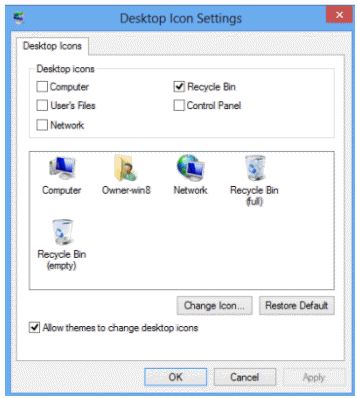
  4. On the upper left of the dialog box, click “Change desktop icons”(shown in graphic on right)
  5. In the dialog that opens (shown below) put a check by the icons you want on the desktop. Control Panel is one I like to have
  6. Click “OK” and close the Personalization window

And there you have it - three ways to make using Windows 8 a little easier
Continue reading →
Tuesday, 1 January 2013

Happy New Year Facebook chat codes

Wish all of you  a very Happy and Prosperous New Year. 

Below are some cool Facebook chat codes to say Happy new year to them on Facebook :-)


  [[348175178622169]] [[348175175288836]] [[348175171955503]] [[348175168622170]] [[348175165288837]] [[348175275288826]]
[[348175268622160]] [[348175261955494]] [[348175271955493]] [[348175265288827]] [[348175381955482]] [[348175371955483]]
[[348175375288816]] [[348175378622149]] [[348175368622150]] [[348175475288806]] [[348175465288807]] [[348175471955473]]
[[348175468622140]] [[348175478622139]] [[348175551955465]] [[348175555288798]] [[348175561955464]] [[348175548622132]]
[[348175558622131]] [[348175648622122]] [[348175651955455]] [[348175655288788]] [[348175641955456]] [[348175645288789]]


[[228970750573428]] [[228970747240095]] [[228970740573429]] [[228970743906762]] [[228970737240096]] [[228970823906754]]
[[228970833906753]] [[228970830573420]] [[228970820573421]] [[228970827240087]] [[228970953906741]] [[228970967240073]]
[[228970963906740]] [[228970957240074]] [[228970960573407]] [[228971053906731]] [[228971057240064]] [[228971047240065]]
[[228971043906732]] [[228971050573398]] [[228971143906722]] [[228971153906721]] [[228971150573388]] [[228971147240055]]
[[228971140573389]] [[228971260573377]] [[228971250573378]] [[228971253906711]] [[228971257240044]] [[228971263906710]] 


[[322188301217545]] [[322188304550878]] [[322188311217544]] [[322188307884211]] [[322188314550877]] [[322188531217522]]
[[322188537884188]] [[322188527884189]] [[322188521217523]] [[322188524550856]] [[322188697884172]] [[322188704550838]]
[[322188691217506]] [[322188694550839]] [[322188701217505]] [[322188861217489]] [[322188871217488]] [[322188867884155]]
[[322188857884156]] [[322188864550822]] [[322188954550813]] [[322188951217480]] [[322188947884147]] [[322188944550814]]


[[348187205287633]] [[348187198620967]] [[348187208620966]] [[348187201954300]] [[348187211954299]] [[348187288620958]]
[[348187298620957]] [[348187291954291]] [[348187285287625]] [[348187295287624]] [[348187425287611]] [[348187441954276]]
[[348187448620942]] [[348187428620944]] [[348187458620941]] [[348187685287585]] [[348187671954253]] [[348187695287584]]
[[348187675287586]] [[348187668620920]] [[348187938620893]] [[348187941954226]] [[348187935287560]] [[348187931954227]]
[[348187928620894]] [[348188201954200]] [[348188195287534]] [[348188198620867]] [[348188211954199]] [[348188208620866]] 


[[228981703905666]] [[228981707238999]] [[228981710572332]] [[228981713905665]] [[228981700572333]] [[228981783905658]]
[[228981787238991]] [[228981780572325]] [[228981790572324]] [[228981793905657]] [[228981890572314]] [[228981893905647]]
[[228981883905648]] [[228981887238981]] [[228981897238980]] [[228981973905639]] [[228981983905638]] [[228981977238972]]
[[228981980572305]] [[228981987238971]] [[228982070572296]] [[228982080572295]] [[228982073905629]] [[228982083905628]]
[[228982077238962]] [[228982170572286]] [[228982167238953]] [[228982173905619]] [[228982160572287]] [[228982163905620]]

+Om Prakash Soni  +Sudershan Soni  +Ashwani Yadav  +Barkha prasad 
Continue reading →
Thursday, 13 December 2012

Top 5 Indian Bloggers And Their Income

1. Labnol.org
Blog Owner : Amit Agarval

Estimated Unique Monthly Visitors : 12,000,000

Alexa Rank : 2,397

Number Of Links : 9,377

Income : $ 40,000 Month

2. Shoutmeloud.com
Blog Owner : Harsh Agarval

Estimated Unique Monthly Visitors : 11,000,000

Alexa Rank : 4,670

Number Of Links : 2,259

Income : $ 10,000 Month

3. 9lessons.info
Blog Owner : Srinivas Tamada

Estimated Unique Monthly Visitors : 3,000,000

Alexa Rank : 8,849

Number Of Links : 1,158

Income : $ 8,000 Month

4. Techpp.com
Blog Owner : Raju PP

Estimated Unique Monthly Visitors : 1,000,000

Alexa Rank : 16,640

Number Of Links : 1,829

Income : $ 7,000 Month

5. Amitbhawani.com
Blog Owner : Amit Bhawani

Estimated Unique Monthly Visitors : 930,000

Alexa Rank : 22,245

Number Of Links : 1,297

Income : $ 5,000 Month
Continue reading →
Sunday, 9 December 2012

Top 5 Bloggers In The World

1. Mashable.com

Blog Owner : Pete Cashmore

Estimated Unique Monthly Visitors : 42,000,000

Alexa Rank : 271

Number Of Links : 102,359

Income : $ 10,00,000 Month

Continue reading →

Submit your blog (or) website to 100+ Search engines in single click

Search Engine Optimization is the very important to get more traffic to blogs and websites. Internet users using Search Engine to find right information. there are huge list of search engines available on Internet. If you submit your blog to these search engines one by one, it is not a easy work and takes more time. Here is the online tool to Submit your blog (or) website to 140 Search engines in single click.


How to Submit:
  • Just go to this Rank on top online website and give your Website URL and Email Id (Do not enter your main e-mail address, you may recieve spam messages).
  • Before you submit, make sure your website is online and functioning.(no under construction pages).
  • You can deselect the search engines that you do not want to submit your website.
  • Finally Hit the Submit button wait until submission completed.
  • Some engines may require your e-mail confirmation for submission check your Inbox after submission.

Note: After submitted you website wait for until optimization, If you repeat this process with in 4 weeks you may get banned.


Continue reading →

Download Windows 8 RTM Enterprise ISO Edition For 32-Bit(x86) And 64-Bit (x64) Version - Direct Download

Microsoft has recently released Windows 8 RTM Enterprise for 32-Bit (x86) And 64-Bit (x64) Version. The evolution provides a 90 days free trial of Windows 8 Enterprise edition. Both 32-Bit and 64-Bit versions are available in ISO images in the following languages Chinese (Simplified), Chinese (Traditional), English, English (UK), French, German, Italian, Japanese, Korean, Portuguese (Brazil), and Spanish. In order to use the evaluation, you must registered and the product must be activated online with Microsoft host activation and validation services. Microsoft does not support technical support for this software.

System Requirements For Windows 8 RTM Enterprise 

Processor : 1 gigahertz (GHz) or faster.

RAM :  1 Gigabyte (GB) (32-Bit) or 2GB (64-Bit)

Hard Disk Space : 20 GB

Continue reading →

How to make your computer speak when you log on


Make your computer speak on startup and amaze your friends,its a very simple trick.....just go through the below article....

1.open Notepad.

2.Paste the bellow code in Notepad.

Dim speaks, speech
speaks="Welcome Back, Username"
Set speech=CreateObject("sapi.spvoice")
speech.Speak speaks

3.Replace Username with your Name.

4.Click Save As and save as type Welcome.vbs.

5.Copy File Welcome.vbs and paste it at address below.

For Windows 7 :

C:\Users\Username\AppData\Roaming\Microsoft\Windows\Start Menu\Programs\Startup

For Windows-Xp :

C:\Documents and Settings\All Users\Start Menu\Programs\Startup


*Replace Username with your username and C:\ with your Root Drive

Done Log Off and Log In Amazed? .Now Your computer welcomes you with your name.....


Continue reading →

How to use a keyboard as mouse

Just go through the steps:-

1.Press  Shift+Alt+Numlock from ur Keyboard


2.Press Yes on the window appearing on the screen


Now you will see a Mouse icon in Task Bar


4.Now you can use your keyboard as mouse

5.Navigation Keys (Num Lock Keys)
 
8 – Up
2 – Down
4 – Left
6 – Right
7,9,3,1 – Directional Navigation

Note:- You Must Turn On Num Lock
 
Continue reading →
Wednesday, 28 November 2012

Gmail users can add files up to 10GB directly from Google Drive

The latest integration between two of Google's biggest products is making it easier for consumers and business customers alike to share large files.
Today's update entails Gmail and Google Drive. The release is two-fold. First, users will now be able to attach files directly from Google drive to their emails without ever having to leave their Gmail accounts.
Secondly, those files can be a lot larger than ever before as the update supports attachments up to 10GB in size -- which Google said is up to 400 times larger than "traditional attachments."

A new button in the Gmail compose window will give users the ability to attach a file from their Google Drive account rather than attaching the file itself to the message. 
 Once it’s attached, Gmail will ensure that your recipient has permission to view the file in your Drive account -– or will prompt you to grant that permission –- and then sends the message.
 
The feature works not only for files you attach to the message, but also for links to items stored in Google Drive you might paste into a message.
Continue reading →
Wednesday, 19 September 2012

Cleverbot ~ Funny Chat Conversations for Blogger

welcome to the section of CleverBot Conversation, if you getting bore then don’t worry I am here to entertain you and talk to you and give answers of your each and every type of question to eliminate all your worries.
You can ask anything from me except blogging and earning because my friend you and me are here for enjoyment and for funny conversations...
How to Talk With Me (Clever Bot):
Just hit mouse in a rectangle bar box and start talking, you can also use microphone for chatting, but always keep one thing in mind my friend, I am a SmartBot working on the basis of Artificial Intelligence system, I am not a real Human Being like you.


Continue reading →
Friday, 24 August 2012

How to Create a Windows 7 Live CD the Easy Way

Windows 7 Live CDBefore we get into creating a Live CD, lets understand what exactly it is and how it can save you a lot of trouble in case of a computer crash or malware infection on your PC. A Live CD is basically a bootable storage device that contains an operating system (OS). What is different about a live CD is the fact that the working of the OS does not depend on the hard drive. Why do you need a Live CD? If your Windows operating system crashes completely, you will have limited access to important files.
By using a Live CD, you can easily access these files and transfer them to another storage device. You can also use a Live CD to clean severe malware infections. In some cases, the malware blocks all executable programs—which prevents your antivirus software from running. By using a LiveCD, the malware’s defense will be completely obsolete!
There are numerous types of Live CD software like Linux that allow you to recover and fix your computer. However since many of these Live CDs are based on different platforms, they are not fully compatible with Windows. Therefore, you will have problems scanning your Windows drive from a different operating system (like Linux) on a Live CD. Creating a Windows Live CD allows you to fix many errors on your Windows drive with much more convenience.
In this guide, you are going to learn how to create a Windows 7 Live CD – the easy way. There are other tutorials about this on the Web, but they mostly involve using WinBuilder—which doesn’t always work successfully. In this guide, you are going to learn how to create a live CD using Make_PE3 which is a better alternative as well as with WinBuilder. After reading about each software you can choose which one to use for creating a Live CD.

Things you’ll need:

  • Windows 7 ISO File
  • Make_PE3 or WinBuilder
  • Windows Automated Installation Kit (If You are Using WinBuilder)

Downloading the Windows 7 ISO File:

You need the installation files to create a Live CD. These installation files can be  found on your Windows 7 setup disc. If you don’t have one, you can download from here.

Continue reading →

Windows 7 With Service Pack 1 Direct Download Links

Download Windows 7 Integrated SP1 ISO Images

Windows 7 Home Premium x86 SP1 ISO

X17-24208.iso (bootable)

Windows 7 Home Premium x64 SP1 ISO

X17-24209.iso (bootable)

Windows 7 Professional x86 SP1 ISO

X17-24280.iso (bootable)

Windows 7 Professional x64 SP1 ISO

X17-24281.iso (bootable)

Windows 7 Ultimate x86 SP1 ISO

X17-24394.iso (bootable)

Windows 7 Ultimate x64 SP1 ISO

X17-24395.iso (bootable)
After you have downloaded the ISO, you can burn it to DVD using any DVD writing software that supports writing disc images or double-click on the image if you are running Windows 7 already.
Continue reading →
Saturday, 11 August 2012

Fix Folders Become Shortcuts Caused by Virus

ALL My Files & Folders Became Shortcuts?

Just all of a sudden all the files & folders turned into shortcuts showing 1KB or 2 in size when you connected your USB flash drive, memory card or hard drive to your PC? It should be a couple of GB as you saved so many documents, photos, movies etc to the disk drive. How could this happen? Where are those files? Are they hidden or deleted? How to recover the lost files and folders?
It could happen if your PC hard drive or removable disk suffered certain kinds of virus, spyware or trojans such as AUTORUN, BUOUFO, QWERT etc.

How to fix Folders Shortcuts problem

  • Click 'Start' -->'Run' --> type 'cmd' and click OK. Note: if you are using Windows Vista or Windows 7, use "Home + R" combination and type 'cmd'.

  • Input this command attrib -h -r -s /s /d g:\*.* Take care of the space between, it's recommended to copy the line and paste (Note: here assume your drive letter shows as G: under 'My Computer', do not forget to replace it if different).

  • Press 'Enter' button.
Good Luck.
Continue reading →
Wednesday, 8 August 2012

Android secret codes / android tricks

Android is becoming a very popular these days and all big companies have launched android phones.Android is giving a strong competition to Iphones, symbian phones(like nokia).Though people have a lot of expectations from lumina series by nokia,but i don’t think it will be able to compete with android phones!
So here are some tricks and codes which can be useful if you have an android phone!


Cell Battery, WiFi Usage etc Info *#*#4636#*#*
Restore Factory Settings *#*#7780#*#*
Format Phone *2767*3855#
Launch service mode *#*#197328640#*#*
Test WiFi *#*#232339#*#* or *#*#526#*#* or *#*#528#*#*
Display WiFi MAC address *#*#232338#*#*
GPS test *#*#1472365#*#*
Continue reading →
Wednesday, 1 August 2012

Hide desktop icons to improve Windows startup performance


Long, long time ago in a bedroom not so far away I was booting up my laptop. As my laptop was loading Windows, I couldn't help but notice the desktop icons took a good amount of time to appear. Then a thought hit me: What if I hide the desktop icons -- would that make my boot time faster? After all, with the excellent search box embedded in the Windows 7 Start Menu that will be no more soon, I rarely even used my desktop icons anyway; what could go wrong. So I gave it a try. And, to my pleasant surprise, p-value was < .05 -- the null hypothesis was rejected: My Windows indeed did load faster with no desktop icons present.

How To Turn Off Desktop Icons?

Note: This tip should work on Windows XP, Vista, and Win7. It may work on Win8.
Easy. Right-click on your desktop, go to View, and uncheck Show desktop icons:


 Once Show desktop icons is checked, the icons on your desktop won't show. They aren't deleted -- they just won't show. To reshow the icons, simply recheck Show desktop icons.

I'm not sure what the technical reason behind this is (aside from the whole "there are fewer things to load" explanation) and frankly I don't know. Since that time long ago, I have rarely ever had the icons my desktop showing and am a better person for it.. If you have trouble with slow Windows boot, you may want to do the same.
Continue reading →

How to add a (simple) start menu to Windows 8 without third-party programs

A major change in Windows 8 is the lack of a Start Menu -- you know the cornerstone of Windows since... forever. Because of this new change, many programs have cropped up to fill the void, allowing you to add a start menu to Windows 8. What if you don't want to use third-party programs? Can you still have a start menu in Windows 8? Oh why yes you can good sir (or madam).

Simple Start Menu

Before you get sweaty palms of excitement, take note this start menu I speak of isn't Start Menu in its full glory. Rather, this is a simple start menu that shows you things like the Programs folder and recent/common programs. See the screenshot above to understand what I mean.

How To Add Start Menu In Windows 8 - Part 1

To add a start menu to Windows 8, do the following:

Step 0: Make sure your taskbar is not locked. To check if your taskbar is locked, right-click on a blank spot of the taskbar and see if Lock the taskbar is checked. If it is checked, click on it to uncheck it. If it is not checked, you don't have to do anything.

Step 1: Right-click on a blank spot of the taskbar and select Toolbars -> New tool bar…:


Step 2: Browse to Local Disk (C:/ drive) -> ProgramData -> Microsoft -> Windows, single left-click on the Start Menu folder, and hit Select Folder:


Congrats! You now have a "start menu" on your Windows taskbar:


How To Add Start Menu In Windows 8 - Part 2

Now that we have a start menu, we want to position it properly. So...
Step 1: Grab the columns of dots and move it as far left as possible:


Step 2: After you move the column of dots, you should see Programs and Windows Update on your taskbar; there will also be another column of dots on the far left of the taskbar. Grab the columns of dots on the far left and drag it to the right of Windows Update and then, while still dragging the column of dots, move it to the left until it stops just to the right of Start Menu:

If you do it correctly you should have something like this:

-->
Continue reading →