windows 8

Make Windows 8 Much Easier and Quicker to Use

Windows 8 can be frustrating because nothing seems to be where it used to be. Here are three tricks that help you find things. They will make ordinary tasks much easier to carry out. One of the annoyances of Windows 8 is trying to find all the various system settings. Readmore...

Blocked Sites

How to -- Bypass/Access Blocked Websites At College/Office

The scenario has changed a lot over the past decade.Internet has grown into a vast resource and with search engines like google it hasn’t been so easy to search for anything about anything on the internet. Internet has become more addictive with the advent of social Readmore..

Windows 8

Windows 8 Direct Download Links

Microsoft has recently released Windows 8 RTM Enterprise for 32-Bit (x86) And 64-Bit (x64) Version. The evolution provides Readmore...

Top Blogger

World's Top 5 Bloggers

Blog Owner : Pete Cashmore
Estimated Unique Monthly Visitors : 42,000,000
Income : $ 10,00,000 Month
Readmore...

Hard Disk

Different types of Hard Disk Drive

Hard Disk Drive - It is a non-volatile storage device which stores digitally encoded data on rapidly rotating platters with magnetic surface.
Types of HDD :
IDE : Integrated Drive Electronics. IDE drives are also known as PATA drives Readmore...

Showing posts with label Windows 8. Show all posts
Sunday, 6 January 2013

This Utility Will Tell You All About the Graphics Card on Your PC

The way we use computers these days requires a lot more graphics capability than it used to. But there’s a quick and easy way to check what kind of graphics memory is on a PC. Use the free lightweight utility from Techpowerup called GPU-Z to reveal all the vital statistics for your GPU. The figure below shows the kind of detail that is given. (Note that because of the kind of system information it accesses you will be asked to grant permission for it to run.)


There is also a tab with statistics from sensors such as the GPU temperature. An example is shown in the next figure.

The utility is a single stand-alone file that needs no installing. It runs on all current Windows systems including Windows 8.
Continue reading →

Three Tricks to Make Windows 8 Much Easier and Quicker to Use

Windows 8 can be frustrating because nothing seems to be where it used to be. Here are three tricks that help you find things. They will make ordinary tasks much easier to carry out.

1. Quick and easy way to access all the settings in Windows 8

One of the annoyances of Windows 8 is trying to find all the various system settings. Here is a way to make them readily available in one big list.
  1. Go to the Desktop
  2. Right-click an empty spot on the Desktop
  3. Choose “New-Folder”
  4. Give the folder this name:
    All Settings .{ED7BA470-8E54-465E-825C-99712043E01C} 
  5. Open the folder to see a complete list of settings
(This works in Windows 7 also where it is sometimes called “God Mode”.)

2. How to shut Down Windows 8 quickly

Shutting down Windows 8 the usual way involves multiple steps. You have to open the Charms bar, click "Settings", then "Power", and finally "Shut down". Here is how to create a desktop shortcut that will reduce these four steps to just one.
  1. Go to the Desktop
  2. Right-click an empty spot on the Desktop
  3. Choose “New-Shortcut”
  4. Go to the line labelled “Type the location of the item…”
  5. Enter:  shutdown.exe -s -t 0 (The last character is "zero".)
  6. Click “Next”
  7. Type a name like Shutdown
  8. Click “Finish”
Once the shortcut is created, you can pin it to the Taskbar:
  1. Right-click the shortcut
  2. Click “Pin to Taskbar”
You can also place the shortcut on the Metro (Modern) interface:
  1. Right-click the shortcut
  2. Click “Pin to Start”
Start in this case refers to the Start Screen and places a copy of the shortcut along with the tiles on the Metro interface.

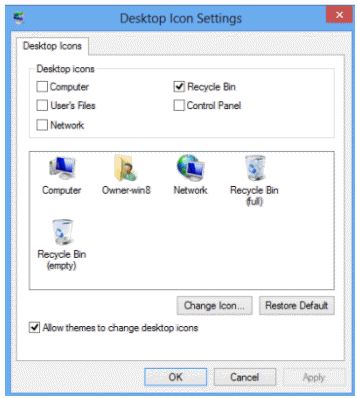
3. How to put commonly used folders and functions on the Desktop

The default desktop in Windows 8 is pretty bare. If you would like ready access on the desktop to some commonly used features, here is how:
  1. Go to the Desktop
  2. Right-click an empty spot on the Desktop
  3. Select “Personalize”
  4. On the upper left of the dialog box, click “Change desktop icons”(shown in graphic on right)
  5. In the dialog that opens (shown below) put a check by the icons you want on the desktop. Control Panel is one I like to have
  6. Click “OK” and close the Personalization window

And there you have it - three ways to make using Windows 8 a little easier
Continue reading →
Sunday, 9 December 2012

Download Windows 8 RTM Enterprise ISO Edition For 32-Bit(x86) And 64-Bit (x64) Version - Direct Download

Microsoft has recently released Windows 8 RTM Enterprise for 32-Bit (x86) And 64-Bit (x64) Version. The evolution provides a 90 days free trial of Windows 8 Enterprise edition. Both 32-Bit and 64-Bit versions are available in ISO images in the following languages Chinese (Simplified), Chinese (Traditional), English, English (UK), French, German, Italian, Japanese, Korean, Portuguese (Brazil), and Spanish. In order to use the evaluation, you must registered and the product must be activated online with Microsoft host activation and validation services. Microsoft does not support technical support for this software.

System Requirements For Windows 8 RTM Enterprise 

Processor : 1 gigahertz (GHz) or faster.

RAM :  1 Gigabyte (GB) (32-Bit) or 2GB (64-Bit)

Hard Disk Space : 20 GB

Continue reading →
Wednesday, 1 August 2012

How to add a (simple) start menu to Windows 8 without third-party programs

A major change in Windows 8 is the lack of a Start Menu -- you know the cornerstone of Windows since... forever. Because of this new change, many programs have cropped up to fill the void, allowing you to add a start menu to Windows 8. What if you don't want to use third-party programs? Can you still have a start menu in Windows 8? Oh why yes you can good sir (or madam).

Simple Start Menu

Before you get sweaty palms of excitement, take note this start menu I speak of isn't Start Menu in its full glory. Rather, this is a simple start menu that shows you things like the Programs folder and recent/common programs. See the screenshot above to understand what I mean.

How To Add Start Menu In Windows 8 - Part 1

To add a start menu to Windows 8, do the following:

Step 0: Make sure your taskbar is not locked. To check if your taskbar is locked, right-click on a blank spot of the taskbar and see if Lock the taskbar is checked. If it is checked, click on it to uncheck it. If it is not checked, you don't have to do anything.

Step 1: Right-click on a blank spot of the taskbar and select Toolbars -> New tool bar…:


Step 2: Browse to Local Disk (C:/ drive) -> ProgramData -> Microsoft -> Windows, single left-click on the Start Menu folder, and hit Select Folder:


Congrats! You now have a "start menu" on your Windows taskbar:


How To Add Start Menu In Windows 8 - Part 2

Now that we have a start menu, we want to position it properly. So...
Step 1: Grab the columns of dots and move it as far left as possible:


Step 2: After you move the column of dots, you should see Programs and Windows Update on your taskbar; there will also be another column of dots on the far left of the taskbar. Grab the columns of dots on the far left and drag it to the right of Windows Update and then, while still dragging the column of dots, move it to the left until it stops just to the right of Start Menu:

If you do it correctly you should have something like this:

-->
Continue reading →
Saturday, 3 March 2012

Windows 8 Consumer Preview Hits 1 Million Downloads


Microsoft's Windows 8 Consumer Preview saw more than one million downloads during the first day of its release, the Building Windows 8 team said via Twitter late Thursday. The beta version of Windows 8 posted on Wednesday morning; it's not clear whether the first million downloads occurred within or just beyond the first 24 hours of availability. Microsoft recorded three million downloads of the Windows 8 Developer Preview between September and December, 2011.

The latest version of Windows is a dramatic departure from previous versions of Microsoft's trademark OS. Most notably, the decades old PC desktop has been kicked from its perch as the main Windows interface in favor of a touch-centric Start screen that echoes Windows Phone 7. "Windows 8 reimagines Windows, from the chipset to the experience," said Steven Sinofsky, president of Microsoft's Windows division.

Expectations are high that Windows 8 (also designed for ARM SoCs) will enable tablet manufacturers to mount a serious challenge to Apple's iPad, which Android tablets have so far failed to do. Whether Windows 8 will be a big winner on traditional PCs, however, is unclear. Microsoft says Windows 8 is just as easy to use with a mouse as it is with a touchscreen, but it requires users to learn a new way of navigating a Windows PC. 

The start button is replaced with a hot corner that kicks you back to the new Metro-style touch-friendly Start screen. From there you can choose to open traditional desktop apps or use some of the new Metro apps such as Xbox LIVE Games, Maps, and a Metro-style Internet Explorer.


PC users will also have to be content with full-screen programs when using Metro-style apps, and must learn how to use the new Charms Bar on the far right of the Windows 8 display. The Charms Bar includes important system functions such as Settings, Search, settings for devices connected to your computer, and a new social-networking friendly Share button.
Windows 8 does offer some new features for PC desktop users, including a revamped file transfer dialog box, tools to deal with duplicate files, faster boot times, and new SkyDrive integration with Windows Explorer (not yet available in the Consumer Preview).

But the main focus for Microsoft in Windows 8 is the touch experience, while the desktop has been turned into a second-class citizen. That appears to be Microsoft's plan for the moment, anyway.  The reaction of regular PC users to Windows 8's radical departure is unclear.
Nevertheless, the large numbers of Windows 8 Consumer Preview downloads suggests, at the very least, that users are interested in checking out the newest version of Windows.

Download your free copy here
Continue reading →

Microsoft Windows 8 Consumer Preview launched

Microsoft has made the next step forward for its next-gen operating system, releasing Windows 8 Consumer Preview for anyone to download and try for free on their PC.

It comes as two download options: an executable file that partitions your existing system and installs Windows 8 as dual-boot; and an ISO that you can burn to disc and try on a fresh computer. This follows the Windows 8 Developer Preview that we took a look at in September 2011.

This time around, Microsoft has been working hard on the user interface. One of the complaints we had when we first looked at Windows 8 was that the Metro interface was great on a touchscreen, but with a keyboard and mouse it was hard to use.

With Consumer Preview, Microsoft has added scrollbars to the bottom of display, so you can quickly slide around the home screen. A zoom-out control lets you get an eagle-eye view of everything, letting you jump to the tiles that you want quickly.

There are also four hotspots in the corners of the display. These can be used to bring up the Start menu, recent applications and a shortcut bar. It looks a lot smoother and better designed than the original Developer Preview, although we'll reserve final judgement until we've had chance to download and install the software.


Download your free copy here
Continue reading →
Saturday, 3 December 2011

How to Download and Install Windows 8 Into a Virtual Machine


The next version of Windows, currently known as Windows 8, was showcased in depth by Microsoft’s own Steven Sinofsky and other members of his team. Teased as a system that would "change everything", Windows 8 indeed includes new usage paradigms that are unheard of on the Windows platform, such a full-screen tile-based user interface and an app store, among others. Microsoft has pledged to keep the Developer Preview fresh by issuing periodic updates.

Download Windows 8 Developer Preview ISO 64-bit / 32-bit Now!

Download Windows 8 Developer Preview (64-bit) with Developer Tools
Download Windows 8 Developer Preview (64-bit) without the developer tools

Download Windows 8 Developer Preview (32-bit)


Most of you probably just want to check out Windows 8 without making a commitment to installing the OS on its own separate drive (or drive portion). No problem! You can still fiddle with the new OS in an environment that's much easier to remove once tinkering time ends, thanks to the power of virtual machines--applications that let you run a virtual PC inside your PC (cue Inception music).

Go grab VirtualBox and install the default package. Once you're finished, you'll open right into a fresh copy of the application. This is where you'll begin creating your system inside your system.

To start, click on the giant New button in the upper-left corner of the app. Give your virtual machine a clever name and select Windows 7 as the operating system. Make sure that your choice of OS (32-bit or 64-bit) matches whichever version of Windows 8 you downloaded.


Click Next, and you'll be taken to a screen that asks how much memory you'd like to devote to the virtual operating system. The 32-bit version of Windows 8 requires 1 gigabyte at minimum, and the 64-bit version requires 2GB, but the more RAM you can give the virtual OS, the better it will run. Click Next once you've made your choice.
Continue reading →
Friday, 2 December 2011

How To Enable Windows 8 Safe Mode

Safe Mode is a diagnostic mode which loads a set of drives and processes sufficient to run Windows. The purpose is to identify root cause of hardware and software related anomalies with their respective threads to either apply fixes or to manually update or disable them. Although Windows 8 Developer Build includes relatively easy to use, automated system repair utilities like System Refresh and System Restore, along with Automatic System Repair to resolve a wide range of Windows boot issues, it doesn’t include Safe Mode option.

Unlike previous Windows versions, where one can easily enable/disable Safe Mode and other Advance Boot options from System Configuration utility, also called msconfig tool, Windows 8 requires user to manually enable Safe Mode boot option using Boot Configuration Data (BCD) Edit command. For those who are not familiar with BCDEdit, it’s a Windows tool written to store and define boot applications, as well as, boot application settings. The BCDEdit store handles Windows OS Boot.ini file by providing it with system and user specified boot applications and their configurations. In this post, we will guide you through the process of enabling Windows 8 Safe Mode option in Windows 8 Advance Boot Options menu.

The first step involves running Command Line Interpreter as an Administrator. From Start Orb hover menu, click Search. In search bar enter CMD and then click Apps. It will show CMD in main window. Now right-click it and from Advanced button present in bottom right corner, choose Run as Administrator.


Now enter the BCDEdit command as shown below.

bcdedit /enum /v


Continue reading →