windows 8

Make Windows 8 Much Easier and Quicker to Use

Windows 8 can be frustrating because nothing seems to be where it used to be. Here are three tricks that help you find things. They will make ordinary tasks much easier to carry out. One of the annoyances of Windows 8 is trying to find all the various system settings. Readmore...

Blocked Sites

How to -- Bypass/Access Blocked Websites At College/Office

The scenario has changed a lot over the past decade.Internet has grown into a vast resource and with search engines like google it hasn’t been so easy to search for anything about anything on the internet. Internet has become more addictive with the advent of social Readmore..

Windows 8

Windows 8 Direct Download Links

Microsoft has recently released Windows 8 RTM Enterprise for 32-Bit (x86) And 64-Bit (x64) Version. The evolution provides Readmore...

Top Blogger

World's Top 5 Bloggers

Blog Owner : Pete Cashmore
Estimated Unique Monthly Visitors : 42,000,000
Income : $ 10,00,000 Month
Readmore...

Hard Disk

Different types of Hard Disk Drive

Hard Disk Drive - It is a non-volatile storage device which stores digitally encoded data on rapidly rotating platters with magnetic surface.
Types of HDD :
IDE : Integrated Drive Electronics. IDE drives are also known as PATA drives Readmore...

Wednesday, 8 August 2012

Android secret codes / android tricks

Android is becoming a very popular these days and all big companies have launched android phones.Android is giving a strong competition to Iphones, symbian phones(like nokia).Though people have a lot of expectations from lumina series by nokia,but i don’t think it will be able to compete with android phones!
So here are some tricks and codes which can be useful if you have an android phone!


Cell Battery, WiFi Usage etc Info *#*#4636#*#*
Restore Factory Settings *#*#7780#*#*
Format Phone *2767*3855#
Launch service mode *#*#197328640#*#*
Test WiFi *#*#232339#*#* or *#*#526#*#* or *#*#528#*#*
Display WiFi MAC address *#*#232338#*#*
GPS test *#*#1472365#*#*
Continue reading →
Wednesday, 1 August 2012

Hide desktop icons to improve Windows startup performance


Long, long time ago in a bedroom not so far away I was booting up my laptop. As my laptop was loading Windows, I couldn't help but notice the desktop icons took a good amount of time to appear. Then a thought hit me: What if I hide the desktop icons -- would that make my boot time faster? After all, with the excellent search box embedded in the Windows 7 Start Menu that will be no more soon, I rarely even used my desktop icons anyway; what could go wrong. So I gave it a try. And, to my pleasant surprise, p-value was < .05 -- the null hypothesis was rejected: My Windows indeed did load faster with no desktop icons present.

How To Turn Off Desktop Icons?

Note: This tip should work on Windows XP, Vista, and Win7. It may work on Win8.
Easy. Right-click on your desktop, go to View, and uncheck Show desktop icons:


 Once Show desktop icons is checked, the icons on your desktop won't show. They aren't deleted -- they just won't show. To reshow the icons, simply recheck Show desktop icons.

I'm not sure what the technical reason behind this is (aside from the whole "there are fewer things to load" explanation) and frankly I don't know. Since that time long ago, I have rarely ever had the icons my desktop showing and am a better person for it.. If you have trouble with slow Windows boot, you may want to do the same.
Continue reading →

How to add a (simple) start menu to Windows 8 without third-party programs

A major change in Windows 8 is the lack of a Start Menu -- you know the cornerstone of Windows since... forever. Because of this new change, many programs have cropped up to fill the void, allowing you to add a start menu to Windows 8. What if you don't want to use third-party programs? Can you still have a start menu in Windows 8? Oh why yes you can good sir (or madam).

Simple Start Menu

Before you get sweaty palms of excitement, take note this start menu I speak of isn't Start Menu in its full glory. Rather, this is a simple start menu that shows you things like the Programs folder and recent/common programs. See the screenshot above to understand what I mean.

How To Add Start Menu In Windows 8 - Part 1

To add a start menu to Windows 8, do the following:

Step 0: Make sure your taskbar is not locked. To check if your taskbar is locked, right-click on a blank spot of the taskbar and see if Lock the taskbar is checked. If it is checked, click on it to uncheck it. If it is not checked, you don't have to do anything.

Step 1: Right-click on a blank spot of the taskbar and select Toolbars -> New tool bar…:


Step 2: Browse to Local Disk (C:/ drive) -> ProgramData -> Microsoft -> Windows, single left-click on the Start Menu folder, and hit Select Folder:


Congrats! You now have a "start menu" on your Windows taskbar:


How To Add Start Menu In Windows 8 - Part 2

Now that we have a start menu, we want to position it properly. So...
Step 1: Grab the columns of dots and move it as far left as possible:


Step 2: After you move the column of dots, you should see Programs and Windows Update on your taskbar; there will also be another column of dots on the far left of the taskbar. Grab the columns of dots on the far left and drag it to the right of Windows Update and then, while still dragging the column of dots, move it to the left until it stops just to the right of Start Menu:

If you do it correctly you should have something like this:

-->
Continue reading →

Computer crashes have you down? Test your RAM for problems with Memtest86+.

MemTest86+ is a diagnostic program used to detect hardware problems with RAM (memory) modules. Since it can be run from a bootable CD, it is faster, safer, and more accurate at detecting memory problems than similar tools which would be run from within Windows.

To use MemTest86+, you first create a bootable CD/DVD with the program on it. You then boot your computer from this CD/DVD and MemTest86+ will start testing your RAM automatically. If there is a problem with your computer’s memory, MemTest86+ will list the errors on screen. Here is how to go about using MemTest86+:
  1. Click here to download the ISO image from the MemTest86+ website. Be sure to select the file named “Pre-Compiled Bootable ISO (.zip)”.
  2. Save this file to your desktop.
  3. Once the download completes, open the downloaded archive file and extract (drag and drop) the single file contained inside to your desktop. The extracted file should have a “.iso” extension.
  4. Use your favorite CD burning software to burn the ISO image to a CD. Be aware, the ISO file you downloaded is an image of a complete CD. You do not want to just burn the ISO image file to a CD as you would other data files, but instead want to make a CD from the image file. How you do this will vary depending on the program you use, but most will have an option similar to “Burn CD from Image File”.
  5. Once you have a MemTest86+ CD, leave it in your computer’s drive.
  6. Restart your computer.
  7. As soon as your computer begins to restart, you will see the BIOS screen (white text on a black background). You should see an option to access a boot menu (often times you are instructed to press “F12″, “F10″ or “Esc” to access the boot menu).
  8. Press the appropriate key to access the boot menu, then select the CD drive with the MemTest86+ CD in it as the boot drive.
  9. Your screen will turn blue and the MemTest86+ program will start its tests. You can watch the progress in the top right.
  10. Depending on the amount of RAM you have, the tests could take a long time. You can either stay and watch the tests run, or leave your computer and return to it later.
  11. Any errors that are found will be listed in red at the bottom of the MemTest86+ screen. If the test complete without errors, you can eject the CD and restart your computer as normal.

What do the errors mean?
If the MemTest86+ scan reported errors, it means that is a problem with your RAM modules or your computer’s motherboard. You should consult a qualified IT company to further troubleshoot the problem and replace any defective hardware.
Continue reading →
Sunday, 22 July 2012

Enable the (Hidden) Administrator Account on Windows 7 or Vista

Many people familiar with prior versions of Windows are curious what happened to the built-in Administrator account that was always created by default. Does this account still exist, and how can you access it?

The account is created in Windows 7 or Vista, but since it’s not enabled you can’t use it. If you are troubleshooting something that needs to run as administrator, you can enable it with a simple command.

Note: You really shouldn’t use this account for anything other than troubleshooting. In fact, you probably shouldn’t use it at all.

Enable Built-in Administrator Account

First you’ll need to open a command prompt in administrator mode by right-clicking and choosing “Run as administrator” (or use the Ctrl+Shift+Enter shortcut from the search box)


Now type the following command:
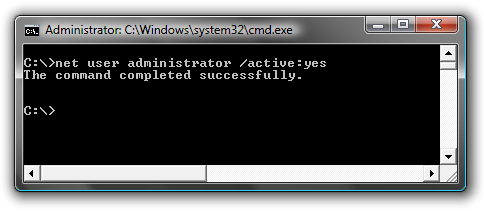
net user administrator /active:yes
You should see a message that the command completed successfully. Log out, and you’ll now see the Administrator account as a choice.

You’ll note that there’s no password for this account, so if you want to leave it enabled you should change the password.

Disable Built-in Administrator Account

Make sure you are logged on as your regular user account, and then open an administrator mode command prompt as above. Type the following command:
net user administrator /active:no
The administrator account will now be disabled, and shouldn’t show up on the login screen anymore.

Continue reading →
Saturday, 21 July 2012

15 Web Alternatives to Popular Desktop Software

Web applications have come a long way. They used to be amateur imitations of their desktop counterparts, with only one or two functions and not at all practical. But my, have these web apps grown. Web apps these days have become so powerful and useful that in some cases, they’ve begun to replace desktop software.
Desktop programs are great and all, but they don’t provide the same benefits as web apps that make use of cloud computing. With most web apps, you only need a browser and an internet connection to access all your data online. That beats having to install annoying programs any day. To give you a better sense of how useful web apps have become, I’ve compiled a list of web tools and apps that can very well replace some desktop programs. I hope you take the time to try them all out. You’ll be surprised how well they work.
Without further ado, here are some great web alternatives to the popular desktop programs we all love.

Sliderocket

Replaces: Microsoft PowerPoint


Sliderocket is a fully functional presentation web app that allows you to create, manage, edit, and share presentations on the fly. It offers many of the same features present in PowerPoint and then some.

Acrobat.com

Replaces: Microsoft Office, Adobe Acrobat

Acrobat.com is a suite of web applications by Adobe that replaces your office suite. The online suite includes services like Buzzword, Tables, and Presentation which replace Microsoft Word, Excel, and Powerpoint respectively. Acrobat.com also offers other features, allowing users to convert files into PDFs, hold online meetings, and collaborate with one another. All of its services are free (with some limitations), but users can subscribe to different plans for more features. Check out the pricing section for more details.
Continue reading →